English
 Deutsch
7. Create a navigation
Our default template should get a navigation: the titles of all pages, each linked to its page view.
Return to the backend start page and click the tile “ Templates”.
The list of template areas appears.

Click the area “Page templates”. The template list appears.
Right-click the template “page_default”. A context menu appears. Choose “ Edit”.
The input form of the template opens.
Change the code as follows:
<html>
<body>
<div>Camindo Architects</div>
<hr>
(CMS:SELECT navigation
  filter[area]=pages
)
<hr>
<h1>(CMS:TEXT title)</h1>
(CMS:MEDIA image
  attr[style]="width:400px;height:auto;float:left;margin-right:20px;"
)
(CMS:TEXT text)
<br style="clear:both">
</body>
</html>
After you click Save, the code is displayed in color: CMS commands are purple, and the command parameter navigation is blue and underlined.
A quick note on the code:
Strictly speaking, all parameters – like those of HTML tags – have a key and a value: (CMS:COMMAND key1=value1 key2=value2). However, many commands have a main parameter whose key can be omitted. For CMS:SELECT, this is the key resulttemplate.
So the command could also be written like this:
(CMS:SELECT
  resulttemplate=navigation
  filter[area]=pages
)
For CMS:TEXT, the main key is field – so our template could also say:
(CMS:TEXT field=title)Back to the command CMS:SELECT: It filters content from the database – in our case from the content area pages (this is the name of the content area, not its label).
Now we need a result template that is run through for each record that passes the filter.
Simply click the underlined value navigation in the code. A question with a blue background appears, asking whether you want to create the template. Click “Create” below the question.
In the form, the name navigation is already filled in, and the code already contains two commands. They mark the section that is run through for each record.
Add to the code as follows:
<ul>
(CMS:RESULT_START)
<li><a href="(CMS:URL)">(CMS:TEXT title)</a></li>
(CMS:RESULT_END)
</ul>
Then save.
You can use the breadcrumb navigation below the page header to return to the template list (click “Page templates”):
TEMPLATES › PAGE TEMPLATES › INFO
Alternatively, click “ Close” next to the other buttons.
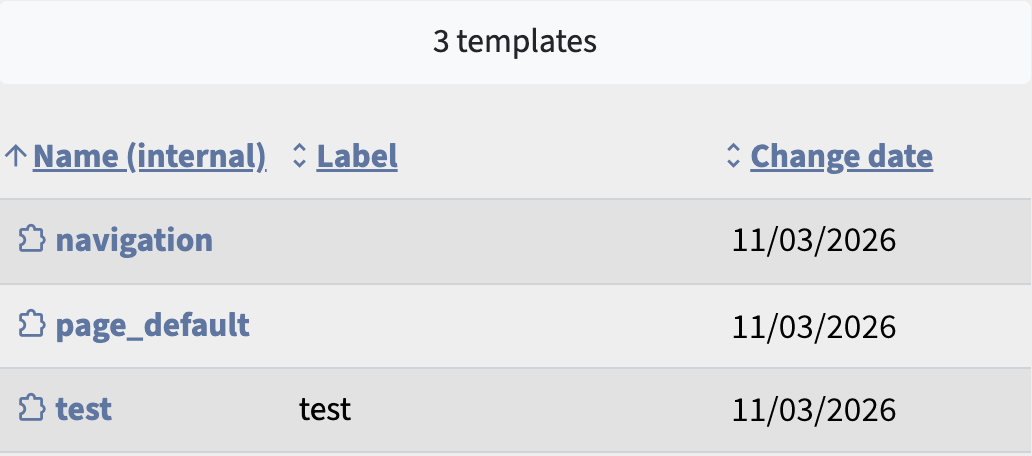
The list should now show three templates. If it does not, click the button “ Refresh”.