English
 Deutsch
6. Create a page template
Return to the backend start page and click the tile “ Templates”.
The list of template areas appears.

Click the area “Page templates” and then the button “ Create”.
Fill in the form as follows:
- Name:
page_default - Code:
<html>
<body>
<h1>(CMS:TEXT title)</h1>
(CMS:MEDIA image
  attr[style]="width:400px;height:auto;float:left;margin-right:20px;"
)
(CMS:TEXT text)
<br style="clear:both">
</body>
</html>
After you click Save, switch to the tab “Access”.
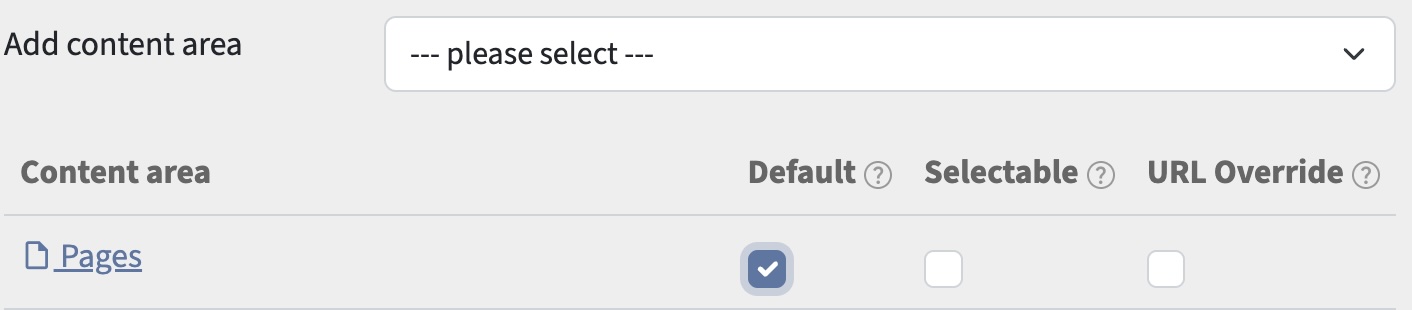
Under “Add content area”, select the area “Pages”.
Three checkboxes appear. Tick “Default” and save. The contents of the area “Pages” are now displayed with this template by default.
Return to the backend start page and click the tile “ Contents”.
The list of content areas appears.
Click the content area “Pages”. The record list of the area appears.
Click a record. Its detail view appears.
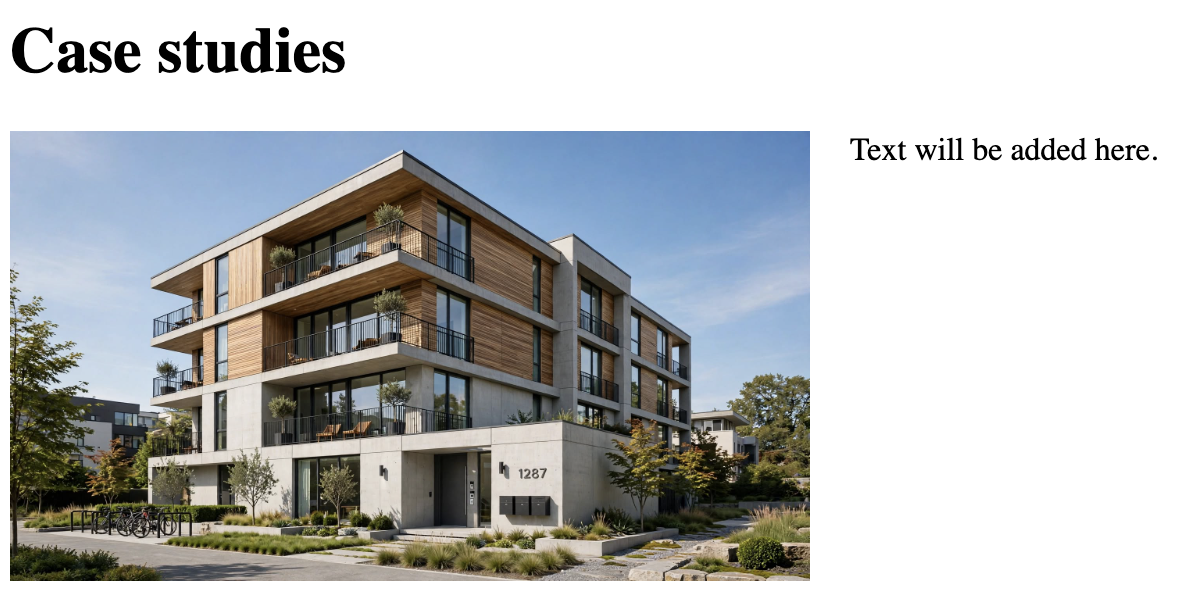
At the top of the detail view, the button “ Preview” is now available. Clicking it shows the record in the frontend, displayed with the new default template.